Best Docking Stations for MacBooks in 2026
Finding a reliable docking station for a MacBook can boost productivity with extended displays, fast data transfer, and convenient charging. This guide highlights five top USB-C/Thunderbolt docks designed for MacBook Pro, Air, and other Apple laptops, focusing on features such as multi-monitor support, high-speed data transfer, power delivery, and cooling performance. Each option balances Mac compatibility with robust performance for demanding tasks like video editing, design work, and programming.
| Product | Brand | Key Strength |
|---|---|---|
| Anker Prime TB5 Docking Station | Anker | Thunderbolt 5 with 14-in-1, advanced cooling |
| TobenONE MacBook Docking Station Dual Monitor 4K | TobenONE | Dual 4K via HDMI1/HDMI2, 100W charging |
| iVANKY FusionDock Max 2 | IVANKY | Triple displays up to 6K, active cooling |
| Plugable USB C Laptop Docking Station UD-6950PDH | Plugable | Dual 4K, DisplayLink support for Macs |
| PULWTOP MacBook Docking Station Stand | PULWTOP | 11-in-1 with dual 4K, USB-C/USB-A, PD |
Below you’ll find detailed product sections, each with a concise overview, highlighted features, and practical considerations to help you choose the best MacBook dock for your setup.
Anker Prime TB5 Docking Station

The Anker Prime TB5 Docking Station is a 14-in-1 Thunderbolt 5 hub designed for fast data transfer and expansive I/O. It includes two Thunderbolt 5 downstream ports, USB-C and USB-A ports, SD/TF readers, an Ethernet port, audio, and HDMI 2.1 or DisplayPort 2.1 outputs. A built-in cooling system helps maintain performance under load, reducing thermal throttling. It supports up to 8K display configurations for compatible displays and MacBooks, with sophisticated cooling aiding sustained performance during intensive tasks like large file transfers and 4K/8K video workflows. Note: For some MacBooks with certain chipsets, external display capabilities may be limited to one display depending on configuration.
Key considerations:
– Pros: High throughput (up to 140W charging, 120Gbps total bandwidth), broad legacy and modern port set, active cooling.
– Cons: Maximum display support may vary by MacBook model; requires compatibility checks for certain multi-monitor setups.
TobenONE MacBook Docking Station Dual Monitor 4K

The TobenONE dual-monitor dock is tailored for MacBook users seeking simultaneous 4K displays via HDMI and HDMI or VGA, supporting dual 4K at 60Hz (via HDMI1 + HDMI2) or 30Hz in other configurations. It provides up to 100W PD charging and ships with a 100W charger. This dock is specifically designed for MacBook Pro/Air models and emphasizes straightforward plug-and-play with stable power delivery for extended sessions. HDMI2 and VGA mirror content, making it suitable for presentations where identical outputs are required.
Key considerations:
– Pros: Solid dual-monitor support, robust charging, included 100W adapter.
– Cons: HDMI2 and VGA mirror limits extended dual-monitor versatility; verify compatibility with your exact MacBook model.
iVANKY FusionDock Max 2

The FusionDock Max 2 offers triple-monitor support and is designed for MacBooks with M1/M2/M3/M4/M5 Pro/Max chips. It delivers up to 6K@60Hz across three displays in certain configurations and includes a cooling system with internal copper plates and a fan to maintain performance during heavy use. This dock is marketed as Mac-exclusive, with Windows compatibility noted as restricted. It emphasizes efficient heat management for sustained workloads like video editing, 3D rendering, and large data tasks.
Key considerations:
– Pros: Triple display capability on supported Macs, effective cooling, high-end video performance.
– Cons: Not compatible with Windows laptops; some configurations require chip-specific setups.
Plugable USB C Laptop Docking Station

The Plugable UD-6950PDH docking station is a robust option for Mac users seeking dual 4K display support via HDMI/DisplayPort and up to 100W charging. It uses DisplayLink technology to overcome Mac display limitations, enabling extended desktop across two external monitors. It includes dual video outputs and a comprehensive USB-A/C port array, making it a versatile hub for productivity setups, home offices, and classrooms. Some Mac configurations may require DisplayLink drivers for full functionality.
Key considerations:
– Pros: Strong dual-monitor capability, USB-C charging, broad compatibility with macOS.
– Cons: DisplayLink driver install may be necessary; occasional driver updates required.
PULWTOP MacBook Docking Station Stand
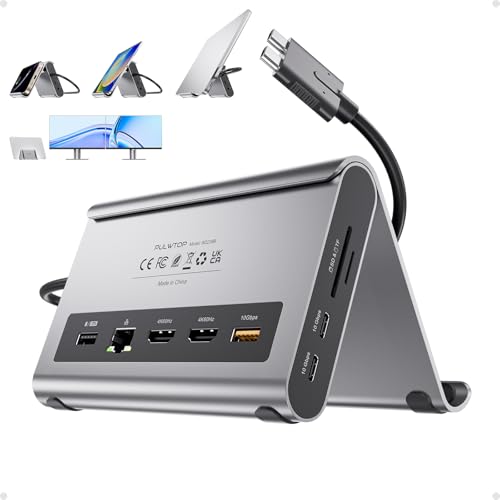
The PULWTOP docking station stand features 11-in-1 functionality, including two 4K@60Hz HDMI outputs, USB-C and USB-A ports, SD/Micro SD, Ethernet, audio, and a 65W+ power-in requirement. It is designed to hold a MacBook while providing easy access to a broad set of peripherals. The dock emphasizes a space-saving form factor and desktop organization, making it suitable for home offices and compact workspaces. Compatibility notes should be checked for specific MacBook models to ensure full video output capabilities from all ports.
Buying Guide: Key Purchase Considerations
- Display configuration: If you need multiple external monitors, verify the dock’s support (dual vs. triple), and confirm it matches your MacBook’s chip (M1/M2/M3/M4/M5) to avoid display limitations.
- Power delivery: Check PD ratings to ensure your MacBook charges efficiently while peripherals are active. Some docks include up to 100W or more, which is ideal for larger MacBook models.
- Data throughput and ports: For large file transfers or media work, prioritize docks with Thunderbolt 5/4, 120Gbps+, multiple USB-C/USB-A ports, SD card readers, and Ethernet.
- Cooling and stability: Cooling systems help prevent throttling during heavy workloads. This is especially important for long sessions or 8K/6K workflows.
- Driver requirements: Some docks (notably those using DisplayLink) may require software installation on macOS. Factor in potential updates and compatibility with macOS versions you use.
- Mac compatibility notes: Certain docks may limit external displays based on MacBook chipsets (M1/M2/M3/M4/M5) or require specific ports to drive additional screens. Always verify with your exact model.
- Build and ergonomics: Consider stands or vertical docks for space efficiency if you value a clean desk setup and easy laptop access.
When selecting a dock, align your choice with your primary use case—whether that is video editing with multiple 4K/6K displays, rapid file transfers, or a compact, all-in-one workstation. Each option above provides a different balance of display support, charging power, connectivity, and cooling, enabling a MacBook-allied docking solution for diverse American work and home setups.