Best Monitors for Video Editing: Precise Color, Smooth Playback, and Comfortable Calibration
Answering the demand for color-accurate, reliable screens, these monitors are chosen for video editing workflows, color-critical work, and long sessions. They suit professionals who require Delta E < 2 accuracy, wide color gamuts, and robust ergonomics. Top picks include 27-inch and 32-inch options with IPS panels, Calman Verified calibrations, and versatile connectivity. This guide highlights which model fits best for your setup, whether you’re color grading, editing in 4K, or delivering broadcast-ready content.
The table below compares the selected options to help you quickly decide which monitor aligns with your video editing needs.
| Monitor | Key Color Features | Resolution | Best For |
|---|---|---|---|
| ASUS ProArt PA278CV | Calman Verified, 100% sRGB, USB-C with 65W PD | QHD 2560×1440 | Color-critical editing, portable laptop workstations |
| ASUS ProArt PA279CRV | Calman Verified, 99% DCI-P3/Adobe RGB, 4K HDR | 4K 3840×2160 | High-detail color grading and HDR workflows |
| ASUS ProArt PA248QV | 100% sRGB/Rec.709, Delta E < 2, Calman Verified | WUXGA 1920×1200 | Desk-focused color work, budget-friendly |
| CUNPU 27 Inch 4K | 100% DCI-P3, PiP/PBP, IPS with 178° viewing | 4K 3840×2160 | Multi-source editing and color accuracy |
| CRUA 32″ 4K Curved | 120% sRGB, 4K, built-in speakers | 4K 3840×2160 | Immersive timelines and layout work |
ASUS ProArt PA278CV — WQHD, IPS, Calman Verified

The PA278CV delivers 27 inches of WQHD (2560×1440) with an IPS panel and a color-accurate 100% sRGB workspace. It is Calman Verified, ensuring Delta E < 2 out of the box, and offers USB-C connectivity with 65W Power Delivery for simplified laptop pairing. This monitor is best for editors who need strong color fidelity without stepping up to 4K, plus a practical hub for peripherals.
Who it’s best for: Freelancers, color-correcting editors, and single-display workstations that benefit from precise color and USB-C convenience.
Why chosen: The combination of Delta E < 2 accuracy, 100% sRGB/Rec.709, and a 27-inch IPS panel makes it a reliable primary or secondary edit monitor that fits most color workflows.
Caution / limitation: Not a 4K monitor, so extremely high-detail 4K timelines may require downscaling or a second 4K display for reference.
ASUS ProArt PA279CRV — 4K HDR, 99% DCI-P3/Adobe RGB

The PA279CRV provides a 27-inch 4K HDR panel with a wide color gamut and Calman Verified color accuracy (Delta E < 2). It also features USB-C with power delivery, plus DisplayPort and HDMI options for flexible multi-device setups. This is a strong pick for editors who need ultra-high resolution, precise color, and a single-cable workflow for laptops.
Who it’s best for: Professionals doing color-critical 4K editing, HDR grading, and multi-device desks.
Why chosen: The 4K HDR capabilities paired with comprehensive color coverage make it a future-proof choice for advanced post-production.
Caution / limitation: Higher cost and increased GPU demands for real-time playback of large HDR timelines may occur.
ASUS ProArt PA279CV — 4K HDR, 100% sRGB/Rec. 709

This 27-inch 4K monitor emphasizes precise color with 99% sRGB/ Rec. 709 and Delta E < 2, plus USB-C with display and data support. The extensive connectivity (DisplayPort and HDMI, plus USB hub) and factory-calibrated color make it a strong candidate for high-level color work and content creation on a single screen.
Who it’s best for: Editors needing a powerful 4K workflow with easy connectivity to laptops and PCs.
Why chosen: Calman Verified accuracy and broad color coverage offer reliable color fidelity for broadcast-grade projects.
Caution / limitation: The 4K panel can be resource-intensive for real-time editing on older hardware.
ASUS ProArt PA248QV — 24-inch Color-Accurate Workstation
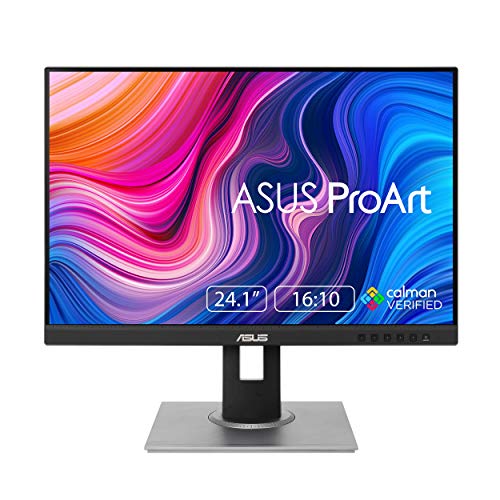
The PA248QV balances color accuracy and desk space with 24 inches of 1920×1200 resolution. It covers 100% sRGB/Rec.709 and is Calman Verified with Delta E < 2. This monitor is well-suited for editors who require precise color without a huge screen footprint.
Who it’s best for: Small workspace edit bays, students, or professionals prioritizing color fidelity in a compact size.
Why chosen: Calman verification and strong color coverage at a compact size provide dependable color accuracy in a budget-friendly package.
Caution / limitation: Lower resolution than 4K models; not ideal for large-scale timelines or heavy detail work on a single monitor.
CUNPU 27 Inch 4K — IPS, 100% DCI-P3
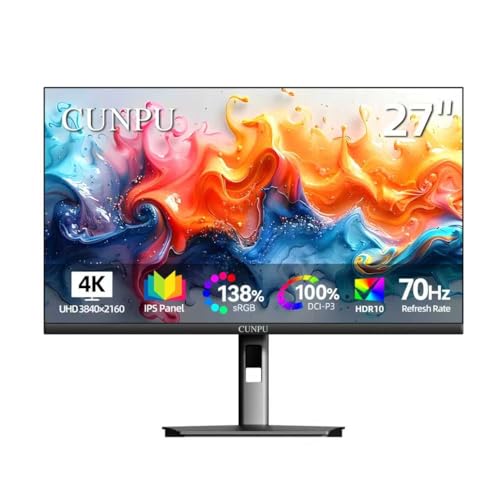
The CUNPU 27-inch 4K monitor brings 100% DCI-P3 coverage with an IPS panel and PiP/PBP features. It’s a versatile option for editors who must compare two sources side-by-side or reference multiple timelines concurrently. The color depth and rich gamut support improve color grading in post-production workflows.
Who it’s best for: Editors managing multiple sources, reference material, and color-critical tasks in one workspace.
Why chosen: High color coverage and flexible picture-in-picture features aid in efficient, multi-source video editing.
Caution / limitation: 4K with PiP/PBP can demand more GPU bandwidth and may require careful calibration to maintain consistent color across inputs.
CRUA 32″ White Curved 4K — Immersive Editing

The CRUA 32-inch curved monitor provides 4K resolution on a larger curved panel, with a 60Hz refresh rate and AMD FreeSync. It covers 120% sRGB and includes built-in speakers for convenience. This model is best for editors who want a broad, immersive timeline view and a budget-friendly 4K option.
Who it’s best for: Editors who prefer a larger, immersive screen and want to minimize desk clutter with built-in audio.
Why chosen: The 32-inch curve enhances context and layout review during edits and color grading, while staying accessible price-wise for some studios.
Caution / limitation: 60Hz may be less ideal for fast-paced editing with heavy motion timelines; consider higher refresh options if your workflow includes rapid cuts.
Buying Guide: Key Considerations For Video Editing Monitors
Color accuracy, resolution, and ergonomics top the list. When selecting a monitor for video editing, consider these factors:
- Color accuracy: Look for Delta E < 2, factory calibration, and wide color gamuts (sRGB/Rec.709, DCI-P3, or Adobe RGB).
- Resolution and workspace: 4K is ideal for high-detail timelines; 1440p can work well for secondary monitors or tighter budgets.
- Panel type: IPS panels deliver better color consistency and wide viewing angles crucial for collaborations.
- Color management features: Calman Verified status helps ensure out-of-the-box accuracy; LUT support and color-engine integration are a plus.
- Connectivity: USB-C with power delivery reduces cable clutter; multiple inputs (HDMI, DisplayPort) enable easy multi-device setups.
- ergonomics: adjustable height, tilt, swivel, and pivots reduce strain during long editing sessions.
- HDR and SDR workflows: If you work with HDR, ensure your monitor supports the HDR standard you use (HDR10, etc.) and check the color gamut coverage.
FAQ: Quick Answers For Buyers
- What is Delta E, and why does it matter? Delta E measures color accuracy; lower is better. A Delta E < 2 indicates near-perfect color reproduction for editing.
- Is 4K necessary for video editing? Not always. For detailed color work and large timelines, 4K offers more screen real estate and precision, but 1440p can suffice for many workflows when budget or desk space is limited.
- Why is Calman Verified important? It provides independent calibration verification, helping ensure consistent color accuracy across displays and timelines.
- Do I need USB-C for editing? USB-C with power delivery simplifies connections to laptops and reduces cable clutter, especially on small desks.
- What panel type should I prefer? IPS panels are typically best for color-critical editing due to stability and viewing angles.
- Should I pick a curved monitor for editing? Curved displays can improve immersion and timeline context, but may complicate accurate color reading on the edges in some cases. Treat as a preference rather than a necessity.