Best Easy-to-Use Tablets for Seniors: Simple, Safe, and Connected
Answering buyers’ needs with clear, practical guidance, this guide highlights user-friendly tablets ideal for seniors. The top picks focus on simple interfaces, clear displays, reliable connectivity, and safe features. Best for first-time tablet users, caregivers seeking gifts, and seniors prioritizing quick setup and dependable family communication.
Buyers can compare key options at a glance below. The table summarizes essential attributes to help decide who each tablet is best for, including display clarity, storage, and built-in safety features.
| Product | Storage & Connectivity | Best For | Notable Limitation | |
|---|---|---|---|---|
| GrandPad Easy to Use Tablet | Large icons, private network, simple navigation | Integrated plan support, family sharing apps | Complete senior-focused package with safety and care | Requires paid plan for full features |
| Pix Star Touch Tablet | Beginner-friendly interface, enlarged controls | Wi-Fi, 2 cameras | Easy video calls and safe browsing for seniors | Limited app ecosystem compared to big stores |
| COLORROOM Android 11/16 Tablet | Anti-blue light, large display options | Expandable storage, Wi-Fi 6 | Eyesafe viewing and clear multimedia | Android experience may need setup guidance |
| ECOPAD 10.1 Inch Tablet | 10.1″ IPS screen, Android 15 | 12GB RAM, 64GB ROM, microSD up to 1TB | High performance for streaming and calls | Android 15 may require familiarity with features |
| Amazon Fire HD 10 Tablet | 10.1″ Full HD, user-friendly interface | 32GB-64GB, microSD expansion | Reliable media consumption and simple apps | Ads may appear on some models; basic apps only |
GrandPad Easy to Use Tablet & Phone for Seniors
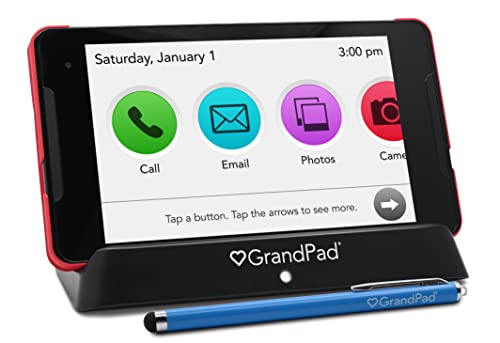
GrandPad is designed specifically for seniors, combining a tablet and phone in a single, secure package. It features large icons and a private network that blocks spam and scams, providing a controlled online environment. This makes it easier for older adults to stay connected with family through preselected apps and trusted services. Best for caregivers seeking a turnkey experience with built-in safety features. A potential limitation is that full functionality requires activation and ongoing plan subscriptions, which can affect long-term cost.
Pix Star Touch Easy To Use Tablet For Seniors

Pix Star emphasizes a simple user interface designed for beginners, with a streamlined control layout that eases navigation for seniors. It supports essential tasks like email, video calling, and web browsing, and includes a zoom feature to adjust readability. Best for those who want a straightforward learning curve and family-friendly communication. A limitation is that the app ecosystem may be smaller than mainstream brands, limiting some modern app choices.
COLORROOM Android Tablet With Anti-Blue Light
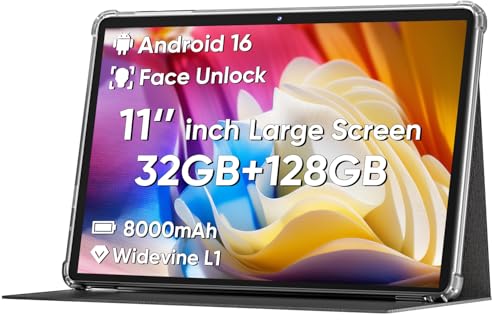
COLORROOM targets eye comfort with anti-blue light features and a large 11-inch display. It combines stable Android 16 with ample RAM and storage, plus Wi-Fi 6 for faster connectivity. Best for seniors who read or watch videos for extended periods and want clearer screens. Choose this if eye comfort and multimedia performance are priorities; beware that Android 16 may require initial setup guidance for some users unfamiliar with newer interfaces.
ECOPAD 10.1 Inch Android Tablet
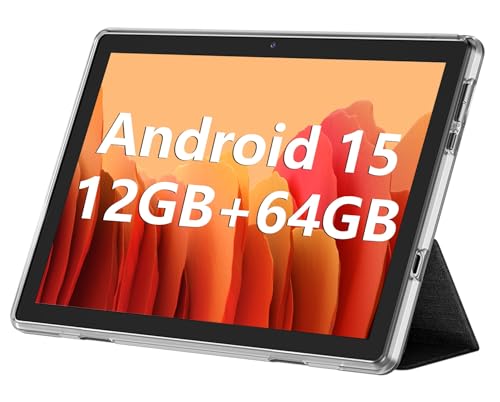
ECOPAD offers a modern Android 15 experience with a 10.1-inch IPS screen and strong multitasking abilities thanks to 12GB RAM and 64GB ROM, expandable up to 1TB via microSD. It supports 2.0MP front and 8.0MP rear cameras for video calls and photos. Best for seniors seeking robust performance and plenty of storage for videos and photos. A caveat is that advanced settings may feel unfamiliar to absolute beginners, requiring a guided setup.
Amazon Fire HD 10 Tablet

Fire HD 10 balances simplicity with solid media capabilities. It features a 10.1-inch Full HD display, octa-core performance, and a choice of storage options with expandable microSD. Best for seniors who primarily consume media, browse, and use basic apps with minimal setup. Limitation includes occasional ads on entry-level models and a more limited app ecosystem compared to higher-end tablets.
Buying Guide: Key Purchase Considerations
What makes a tablet easy to use for seniors?
Big, legible icons; simple navigation; clear menus; and accessible help resources. Look for devices that emphasize senior-friendly modes or dedicated customer support.
Display and readability matters
Opt for larger screens, high contrast, and anti-blue light options to reduce eye strain during long use. Touchscreens should respond accurately to light taps.
Storage and longevity
Consider tablets with ample internal storage and easy expansion via microSD. More storage helps keep apps, photos, and videos accessible without constant management.
Safety and privacy features
Devices with built-in restrictions, spam protection, and kid or senior-safe modes help minimize accidental purchases or exposure to scams.
Connectivity and plans
Wi-Fi reliability and optional service plans can affect usability. Some seniors benefit from devices that include caregiver-friendly app access and family sharing options.
Which device should you choose?
- GrandPad: Choose this for a fully managed, senior-first experience with strong safety features and caregiver support.
- Pix Star: Choose this for a straightforward setup and essential communication tools with a gentle learning curve.
- COLORROOM: Choose this for eye-friendly displays and solid multimedia performance, especially for reading and video watching.
- ECOPAD: Choose this for higher performance and expandable storage when needed, suitable for streaming and video calls.
- Amazon Fire HD 10: Choose this for a balanced, affordable option focused on media consumption and simple apps.
Quick start tips
- Set up a senior-friendly home screen with only essential apps visible.
- Enable large text and zoom features during initial setup.
- Install trusted video calling or messaging apps used by family and caregivers.
FAQ
- Q: Do senior-focused tablets require ongoing subscriptions? A: Some models use plans or companion apps; others are standalone. Check plan terms before buying.
- Q: Are there non-Google options for seniors? A: Yes, some tablets rely on private ecosystems or alternative app stores.
- Q: Can these tablets grow with the user? A: Many offer expandable storage and straightforward updates; consider model longevity.
- Q: Is screen readability the most important factor? A: Yes; a larger, high-contrast display with anti-blue light features greatly improves usability.
- Q: Should I prioritize camera quality? A: For video calls, a reliable front camera helps; for photos, rear camera quality matters less for most seniors.