Best HDMI Extender for Dual Monitors: Clear, Reliable Dual-Display Solutions
If you’re looking to expand a single workstation into a dual-monitor setup, this guide helps you choose reliable HDMI extender adapters that deliver true dual displays. The best options support extending or mirroring across two screens, with clear compatibility notes for Windows, macOS, and other platforms. This roundup targets professionals who need productivity boosts, students setting up multi-screen workspaces, and creatives who require extra screen real estate without a cluttered desk.
The top picks focus on straightforward, driver-assisted and plug-and-play solutions. Readers should note platform limits: some adapters work only on Windows, some require specific DP or USB-C port capabilities, and a few need driver installation. The table below summarizes the five selected products and their core strengths for quick comparison.
| Product | Best For | Key Benefit | Platform Notes |
|---|---|---|---|
| StarTech USB-A 3.0 to Dual HDMI Adapter | Windows-only workstations | Extends to two HDMI displays from a USB-A port | Windows X86/X64/ARM; Driver installation required |
| DisplayPort to Dual HDMI Adapter (Aibilangose) | DP-equipped desktops/laptops | 4K@60Hz to two HDMI displays via DP source | DP1.4 needed for dual 4K@60Hz; Play-and-plug; NOT docking hubs |
| USB C to Dual HDMI Adapter (Veecoona) | Mac and Windows laptops with USB-C | Dual 4K or two 4K/30Hz outputs | macOS limitation: cannot extend; mirror only |
| WAVLINK HDMI Splitter | Flexible cross-platform use | Dual HDMI outputs from USB-A or USB-C | Driver installation sometimes required; Windows/macOS/Android |
| KOZYC USB C to Dual HDMI Adapter | USB-C laptops that require simple plug-and-play | 4K@30Hz on two HDMI ports; DP Alt/Thunderbolt compatible | Not all USB-C ports support video; MST not supported on macOS |
StarTech USB-A 3.0 to Dual HDMI Adapter

This USB-A to dual HDMI adapter is best for Windows-based desks that need two external displays from a single USB port. It supports two HDMI outputs with resolutions up to 4K at 30Hz and 1080p at 60Hz on the second display. It is best for buyers who operate Windows systems and prefer a USB solution rather than a dedicated graphics card or docking station. A limitation is driver installation and the lack of macOS or Linux support.
- Best for: Windows users needing two external HDMI displays from a single USB-A port
- Why chosen: Simple setup for extending a workstation at home or office
- Caution: Not compatible with macOS, ChromeOS, or Linux; require admin rights to install drivers
DisplayPort to Dual HDMI Adapter (Aibilangose)
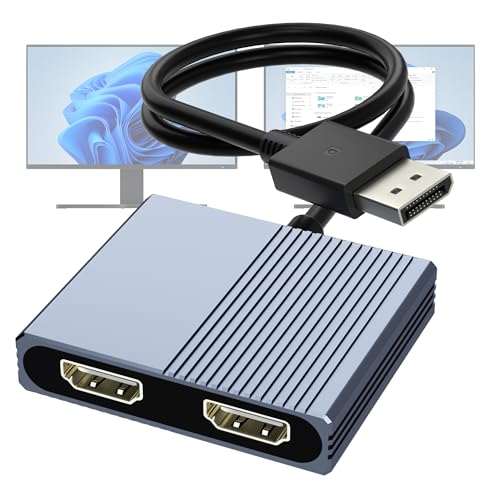
This DisplayPort MST hub converts a DP source to two HDMI displays, offering true 4K@60Hz output when the source and monitors support DP 1.4. It supports MST and SST modes, letting you mirror or extend across two screens. It is best for higher-end desktops or laptops with a DP output. A key limitation is that some DP configurations and cables must be compatible, and DP1.2 may reduce to 4K@30Hz or 4K single-output.
- Best for: DP-equipped devices needing two HDMI displays
- Why chosen: High-resolution dual outputs with MST support
- Caution: Requires DP1.4 for true dual 4K@60Hz; ensure compatible cables and displays
Veecoona USB C to Dual HDMI Adapter
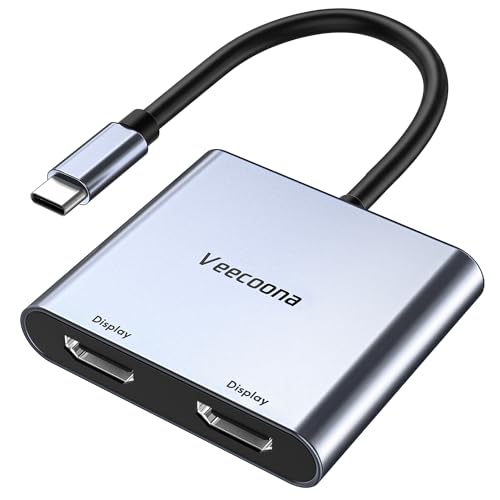
This USB-C to dual HDMI adapter supports up to 4K@60Hz single output or dual 4K@30Hz, with compatibility for Mac and Windows laptops via DP Alt Mode. macOS users should note that MST is not supported and mirroring is the default behavior. It’s a solid choice for USB‑C equipped laptops that prioritize plug-and-play without software installation.
- Best for: USB-C laptops needing two HDMI outputs
- Why chosen: Flexible 4K output options with easy plug-and-play
- Caution: macOS supports only mirror mode; verify port capabilities for 4K
WAVLINK HDMI Splitter (USB-A/USB-C)

This WAVLINK model offers a dual-monitor setup via USB-A or USB-C connections. It supports up to 1080p at 60Hz on standard configurations and 2560×1440 at 60Hz for some setups. It is best for users who need cross-platform compatibility and don’t mind driver installation in some cases. Not ideal for Linux or iPadOS environments where drivers may be problematic.
- Best for: Diverse OS environments requiring dual displays
- Why chosen: Flexible connection options (USB-A or USB-C)
- Caution: Driver installation may be required; performance varies by host GPU
OREI SplitExtend HDMI Splitter

The OREI SplitExtend offers dual-monitor support via both USB-A and USB-C adapters, making it suitable for mixed setups. It targets Windows, macOS, and Chrome OS users. It supports 4K@30Hz and 1080p outputs, making it a balanced option for those who don’t require the highest refresh rates. A note: driver installation may be needed and may vary by system configuration.
- Best for: Mixed-OS environments needing a two-monitor extension
- Why chosen: Flexible USB-A/USB-C compatibility with multi-monitor output
- Caution: Some systems may require driver installation
KOZYC USB C to Dual HDMI Adapter

This KOZYC adapter provides two HDMI outputs from a USB-C port, delivering 4K@30Hz per output or dual 4K@30Hz depending on host capabilities. It supports DP Alt Mode and Thunderbolt 3/4 when present. It is a plausible choice for MacBook Pro and other USB-C laptops that require a simple, driver-free setup. Macs, in particular, should be aware that MST mode is not supported here.
- Best for: USB-C laptops needing a straightforward two-monitor solution
- Why chosen: Plug-and-play, solid compatibility with modern USB-C ports
- Caution: Not all USB-C ports carry video signals; MST unsupported on macOS
Buying Guide: Key Considerations For Dual-Monitor HDMI Extenders
When shopping for HDMI extenders to dual monitors, consider port type, driver needs, supported resolutions, and operating systems. Below are practical questions to help decide.
- What host port do I have? USB-A, USB-C, or DisplayPort? Choose adapters matching your port to avoid dongle clutter.
- Do I need to extend or mirror? Some adapters only mirror content on both displays; others extend across two independent screens. Confirm support for MST or SST modes as needed.
- What resolution and refresh rate do I require? If you need 4K on both displays, ensure the adapter and source support 4K at 60Hz or 30Hz depending on the model.
- Is driver installation acceptable? Some devices require drivers; in work environments, confirm admin permissions and IT policy before purchasing.
- Platform compatibility? macOS may limit to mirror mode on some adapters; Windows and Linux generally have broader support but still vary by model.
- Power and cables? Some hubs require external power/adapters, others are bus-powered. Check recommended cable lengths for 4K performance.
Frequently Asked Questions
- Can I use any HDMI splitter to extend to two monitors? No. A splitter duplicates the same signal. For independent dual displays, choose a dual-output extender or MST-based hub.
- Is MST required for dual 4K displays? Yes, for true dual 4K at 60Hz, you typically need a DP 1.4 source with MST support and a compatible hub or adapter.
- Will this work on macOS? Some adapters support macOS with mirror-only mode or limited extended modes. Always check the product’s platform notes.
- Do I need drivers? Several options are plug-and-play, while others require drivers. In business environments, OEM drivers may be restricted by IT policy.
- What if my USB-C port doesn’t support video output? The adapter will not transmit video through that port. Look for DP Alt Mode compatibility or a different host port.
- Can I use these with Linux? Some models do not support Linux or have limited functionality. Check compatibility before purchase.
By matching specific use cases with platform and port compatibility, you can select a dual-monitor HDMI extender that aligns with your workflow. The options above emphasize Windows and macOS coverage, DP-enabled systems, and USB-C flexibility for a range of professional settings.