Best Laptop Dock Station for Multitasking: Top 5 Docks for 2026
Maximize your workstation with a reliable laptop docking station that expands ports, supports multiple displays, and delivers enough power for long work sessions. The following five docks are among the most capable for Windows, macOS, and mixed ecosystems, offering USB-C hubs, multiple HDMI/DisplayPort outputs, fast data transfer, and robust charging. Whether you work from home, in the office, or on the go, these picks balance performance, compatibility, and value.
| Product | Brand | Key Benefit | Ports |
|---|---|---|---|
| Acer Premium 13-in-1 Docking Station | Acer | Triple 4K display support | 2x HDMI, 1x DP, USB-C, 3x USB-A, Ethernet |
| Mukiya USB C Docking Station Stand | Mukiya | Combines stand and dock in one | 4K HDMI, 2x USB 3.0, USB-C PD, SD/TF |
| Baseus 9-in-1 USB C Hub | Baseus | Dual 4K output and fast data | 2x HDMI, USB-A, Ethernet, SD/TF, USB-C PD |
| Anker 8-in-1 USB C Hub | Anker | Compact powerhouse with dual HDMI | 2x HDMI, USB-C PD-IN, Ethernet, SD |
| HP USB-C Dock G5 | HP | Universal compatibility with one cable | USB-C, Display, networking, charging |
Acer Premium 13-in-1 Docking Station

This Acer docking station is engineered for performance with a robust 110W power adapter and a 13-in-1 design. It includes 2x HDMI outputs and 1x DisplayPort, enabling triple monitor setups via MST when supported. A USB-C port, three USB-A ports, Ethernet, an AUX jack, and SD/TF readers deliver extensive connectivity for professionals who multitask across financial modeling, coding, and large data sets. Note that macOS supports only mirroring across multiple displays, while Windows can achieve extended desktop with compatible GPUs and DSC.
The included 110W power adapter feeds the host laptop through the USB-C PD port, maintaining reliability during heavy workloads. For optimal performance, Acer recommends using the bundled power supply and cable to unlock full capability, especially in triple-monitor scenarios. Overall, this dock targets users who need expansive display real estate and solid peripheral support in a single, centralized hub.
Mukiya USB C Docking Station Stand

The Mukiya solution combines a lightweight laptop stand with an 8-in-1 USB-C hub. It supports 4K HDMI output and provides two USB 3.0 ports, a USB-C PD port up to 100W, a USB-C data port, and SD/TF card slots. This dock is particularly suitable for MacBook Pro, MacBook Air, Dell, HP, and other USB-C laptops that benefit from a compact, portable design without sacrificing essential connections. Users should verify device compatibility with video output on the USB-C port before relying on DisplayPort Alt Mode.
Baseus Laptop Docking Station Dual Monitor 4K@120Hz

Baseus delivers a high-refresh, dual-monitor experience with 4K@120Hz support on single-output via HDMI, and 4K on the second display through the second HDMI port (subject to host GPU capabilities). The dock includes a stable 1000Mbps Ethernet connection and a USB-C PD port to keep devices charged while connected. It emphasizes a balance of performance and value, ideal for multitaskers who require reliable extended screens and quick access to SD/TF storage, USB peripherals, and fast data transfer. The hub itself consumes some power, so pairing with a potent charger ensures optimal results.
Anker Laptop Docking Station Dual Monitor
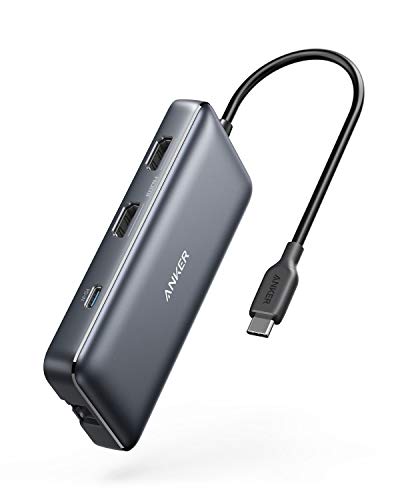
Anker’s 8-in-1 USB-C hub focuses on expanding workspace with two HDMI outputs delivering 4K content and 60Hz or 4K at 30Hz when two displays are active. It includes a USB-C PD-IN port for charging, two USB-A data ports, a MicroSD/SD card reader, and Ethernet. Anker emphasizes the “Massive Expansion” concept, providing robust connectivity from a single USB-C upstream port. For macOS users, note that dual external displays may mirror content depending on the device configuration; Windows users should experience extended desktops if the host GPU supports it. This dock is a compact choice for streamlining a busy desk.
HP USB-C Dock G5-11-in-1
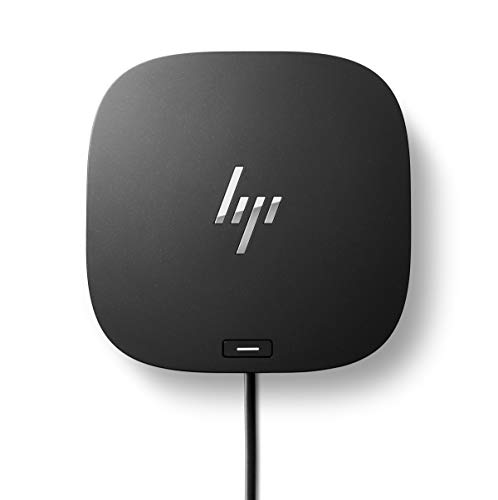
HP’s G5 11-in-1 dock highlights universal compatibility, supporting both USB-C and Thunderbolt-enabled laptops. It promotes a clean desk with a single-cable solution for up to three displays, accessories, and charging. This model targets users who require straightforward setup across a broad range of brands and devices, combining practical expansion with easy cable management. It’s well-suited for secure or remote management environments where standardized docking is beneficial, though users should confirm full video output capabilities with their specific host devices and monitors.
Acer USB C Docking Station Dual Monitor

This Acer 9-in-1 dock packs 2 HDMI outputs with 4K@60Hz, plus 3 USB-A ports, 1 USB-C data port, 1 USB-C PD charging port, and SD/MicroSD slots. A notable caution is ensuring your laptop’s USB-C port supports video output (DisplayPort Alt Mode) for full 4K functionality. The device is designed for compatibility with Acer, Dell XPS, HP, Mac, and Surface lines, delivering robust mixed-use support for home office and corporate environments. It provides a strong alternative for users who value a broad port selection and reliable 4K dual-monitor performance.
Buying Guide: Key Considerations When Choosing a Laptop Dock Station
- Display output and compatibility: Check how many displays you need and whether your laptop supports triple or dual monitor output via HDMI/DP. Confirm DSC support on Windows if you plan triple 4K, and verify macOS behavior (mirroring vs. extended) with your device.
- Power delivery: Look for a dock with an adequate PD rating to keep your laptop charged during heavy workloads. A higher wattage (90W–110W) helps when running multiple displays and peripherals.
- Ports and expandability: Ensure the dock provides the required mix of USB-A, USB-C, Ethernet, SD/TF card readers, and audio jacks. If you rely on SD cards or external drives, prefer docks with fast transfer speeds.
- Build and desk footprint: Consider whether you prefer a traditional dongle dock or a combined stand-dock (like Mukiya). Port placement and stand design can affect ergonomics and cable management.
- Plug-and-play and drivers: Most modern docks are plug-and-play, but some may require drivers for full functionality. If you work in IT, verify remote management and compatibility with enterprise devices.
- Device compatibility with USB-C Alt Mode: For video output through USB-C, your laptop’s USB-C port must support DisplayPort Alt Mode; otherwise, your displays may not output video or may require alternate adapters.
- Brand reliability and warranty: Choose brands with good firmware stability and reliable customer support. A solid warranty adds peace of mind for business use and frequent travel.
These considerations help compare docks across performance, compatibility, and value. For users needing maximum screen real estate, triple 4K configurations offer distinct productivity benefits, while compact docks suit mobile workstyles. Always confirm display and charging capabilities against your specific laptop model to ensure a seamless setup.