Best Screen Splitter Options for Laptops in 2026
Looking to run two or more displays from your laptop? A screen splitter for laptop setups can extend or mirror your screen across multiple monitors. This guide compares five reliable options, showing who each product is best for and why. It’s ideal for remote workers, students, graphic designers, and presenters who need quick multi-display capability without heavy setup. Below is a quick summary table of the chosen products to help you compare at a glance.
| Product | Best For | Key Benefit |
|---|---|---|
| KOZYC USB C to Dual HDMI Adapter | Laptop users needing 4K at 30Hz | Two HDMI outputs with power delivery |
| Newmight USB C Dual HDMI Adapter | Users needing single 4K or dual 4K | 4K@60Hz single or 4K@30Hz dual with PD |
| Veecoona USB C to Dual HDMI Adapter | Mac users needing mirror mode only | Dual 4K output with SST on macOS |
| OREI SplitExtend HDMI Splitter | Windows/macOS multi-monitor extend | Extend and mirror with 2 displays; driver noted |
| avedio links HDMI Splitter 1×2 | Simple mirror for two displays | Duplicated output; not extended |
KOZYC USB C to Dual HDMI Adapter

The KOZYC USB‑C adapter provides two HDMI outputs plus a USB 3.0 port and a 100W PD charging port. It supports 4K at 30Hz and backward compatibility to 2K/1080p at higher refresh rates when the source allows. It’s plug-and-play, with no external power required. It is best for users who need a simple dual‑HDMI setup from a USB‑C laptop and want to charge the device at the same time. Caution: macOS users should note that MST is not supported, and some configurations may mirror rather than extend your displays.
What it’s best for: MacBook Pro or Windows laptops with DP Alt Mode seeking a two-monitor setup while charging via the same hub. The adapter supports various video modes across OSes, but users must confirm their device supports DP Alt mode and HDMI 2.0 cables for 4K at 60Hz.
Limitations: Not all USB‑C ports support DP Alt Mode; verify compatibility. MST is not supported on macOS, which limits extended desktop configurations on Macs.
Mindorlen 4K HDMI Splitter 1 in 2 Out

This Mindorlen HDMI splitter mirrors a single HDMI source to two displays. It supports up to 4K at 30Hz and is suitable for presentations or extended displays that must show the same content on two screens. It does not extend content to separate displays, so choose this when you want synchronized output across multiple monitors or a projector. It’s not compatible with extending to independent screens.
What it’s best for: Situations requiring identical content on two displays, such as conference rooms or classrooms where duplication is essential. It’s a simple, affordable choice for mirroring rather than extending.
Limitations: Not an extender; it duplicates only. For 4K, ensure your HDMI cables and sources support 4K at 30Hz and understand that some devices may default to lower resolutions.
OREI SplitExtend HDMI Splitter

The OREI SplitExtend is designed for a two-monitor setup from a single HDMI source. It supports mirror or extended display modes and provides 4K@30Hz output with a second 1080p channel. It is compatible with Windows and macOS and notes that driver installation may be required for full functionality. This product suits users who want a straightforward dual-monitor arrangement with potential driver support in certain environments.
What it’s best for: Users needing a dependable dual-monitor arrangement for a Windows PC or Mac, with the ability to extend or mirror depending on the workflow. It’s better for those who can manage occasional driver installation for best performance.
Limitations: Not universally plug-and-play; driver installation may be required. Check OS versions and IT policies if used in a corporate environment.
Newmight USB C Dual HDMI Adapter
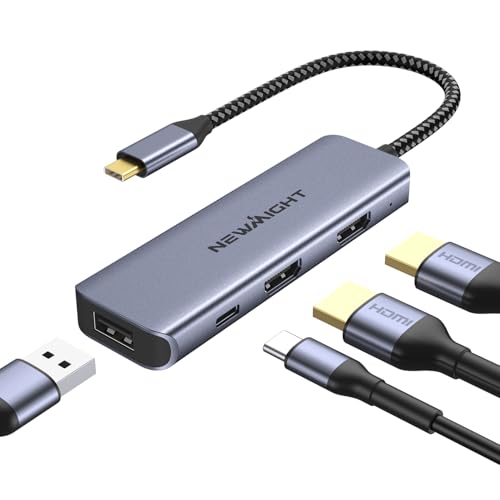
The Newmight 4‑in‑1 USB‑C adapter supports either a single 4K output at 60Hz or dual 4K outputs at 30Hz, with a PD 100W charging port and a USB-A data port. It’s designed for users who want versatile display capabilities while keeping a single compact dock. It is plug-and-play with no driver installation required, making it convenient for quick setups and on-the-go use.
What it’s best for: Users who want the option of one 4K display or two 4K displays, plus charging and data transfer in one compact unit. A good choice for creatives and professionals who work across multiple screens and need fast charging.
Limitations: In dual-4K mode, expect 30Hz per display. Verify that your laptop supports dual 4K output and DP Alt Mode for best results.
Buying Guide: Screen Splitters for Laptops
Key decision points help you match a splitter to your laptop and workflow.
What kind of display arrangement do you need?
Mirror vs. extend. Mirror duplicates the same image on two displays, while extend creates independent screens. If you need more workspace, look for extend-capable adapters. If you just want a larger shared view for meetings or presentations, mirror-friendly devices work well.
What resolutions and refresh rates are supported?
Common targets include 4K at 30Hz or 60Hz and 1080p at 60Hz. Your device must support DP Alt Mode or MST for higher modes. For Mac users, be aware that some adapters operate in mirror-only mode due to macOS limitations.
Is charging or data transfer required?
Many adapters include a USB‑C Power Delivery port (PD) to charge your laptop while connected. Consider whether you need USB-A data ports for peripherals, and ensure the hub can handle the power load without overheating.
Compatibility and driver considerations
Some adapters are plug-and-play; others require drivers (especially Windows or enterprise laptops). If you’re using a work device, verify IT policies before installing drivers. Check whether your device’s USB‑C port supports video output (DP Alt Mode).
Port count and form factor
Evaluate how many displays and ports you need beyond HDMI. Some models include USB-A, USB-C, and charging ports in a compact dongle, while others are larger docks that handle multiple peripherals and power.
Build quality and cable management
Consider heat dissipation and cable length. A well-built adapter with solid build quality and reasonable cable lengths reduces strain on laptops and cables during daily use.
What’s not to love?
Be mindful of limitations like mirror-only modes on macOS, 4K at 30Hz in certain configurations, or the need for drivers. Align expectations with your operating system and hardware capabilities to avoid disappointment.
Quick comparison at a glance
- Best for dual 4K on USB-C laptops: Newmight
- Best plug-and-play with PD charging: KOZYC
- Best mirror-focused for macOS: Veecoona
- Best for extended multi-monitor setups on Windows/macOS: OREI
- Best budget mirror option: avedio links
FAQ
- Do all USB-C laptops support dual HDMI output?
- Can I charge my laptop while using a dual HDMI adapter?
- Is MST supported on macOS for dual displays?
- Will a splitter extend my desktop to two different monitors?
- Do I need drivers for these adapters?
- What cable quality is required for 4K at 60Hz?
Answers: Not all USB-C ports support DP Alt Mode. Yes, many adapters include PD charging. macOS typically supports mirror mode only for MST-capable devices. A splitter can mirror or extend, depending on the model. Some adapters require drivers; others are plug-and-play. For 4K at 60Hz, use HDMI 2.0 or higher cables and confirm device compatibility.